
How the guest form works
Members put their guests' names on a list. The gate sees that list straight away and checks each guest in when they arrive. No paperwork, no phone calls.
- A member adds guests on their phone or computer
- The gate list updates on every gate iPad, on its own
- The guest is checked in when they give their name
See it all in one short video
What the system does, then a member putting guests on the list, then the gate checking them in.
Which describes you?
Putting your guests on the list
It takes about a minute. Do it any time before your guests arrive, even from the car park.
Watch this part of the video
Start to finish in four taps
Here's a member putting two guests on the list for Saturday dinner. The gold circle shows where to tap.
- Your name and member number
- What they're coming for, and the day
- Each guest's full name
- The big blue button
Each step is explained below.
-
1
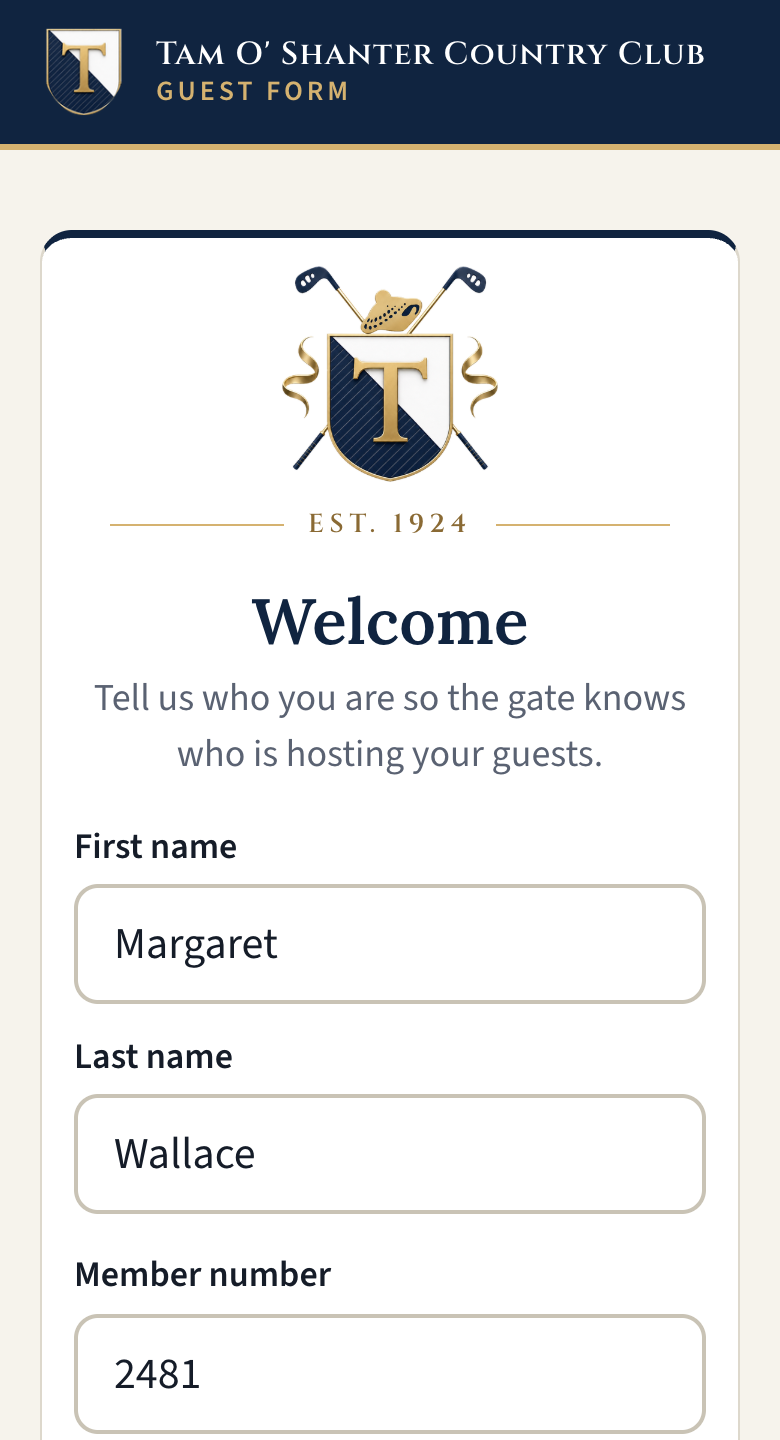
Tell us who you are
Type your first name, last name and member number, then press Continue.
Tip: on your own phone, tick Remember me on this device and next time you'll skip this step. Leave it unticked on a shared iPad.
-
2
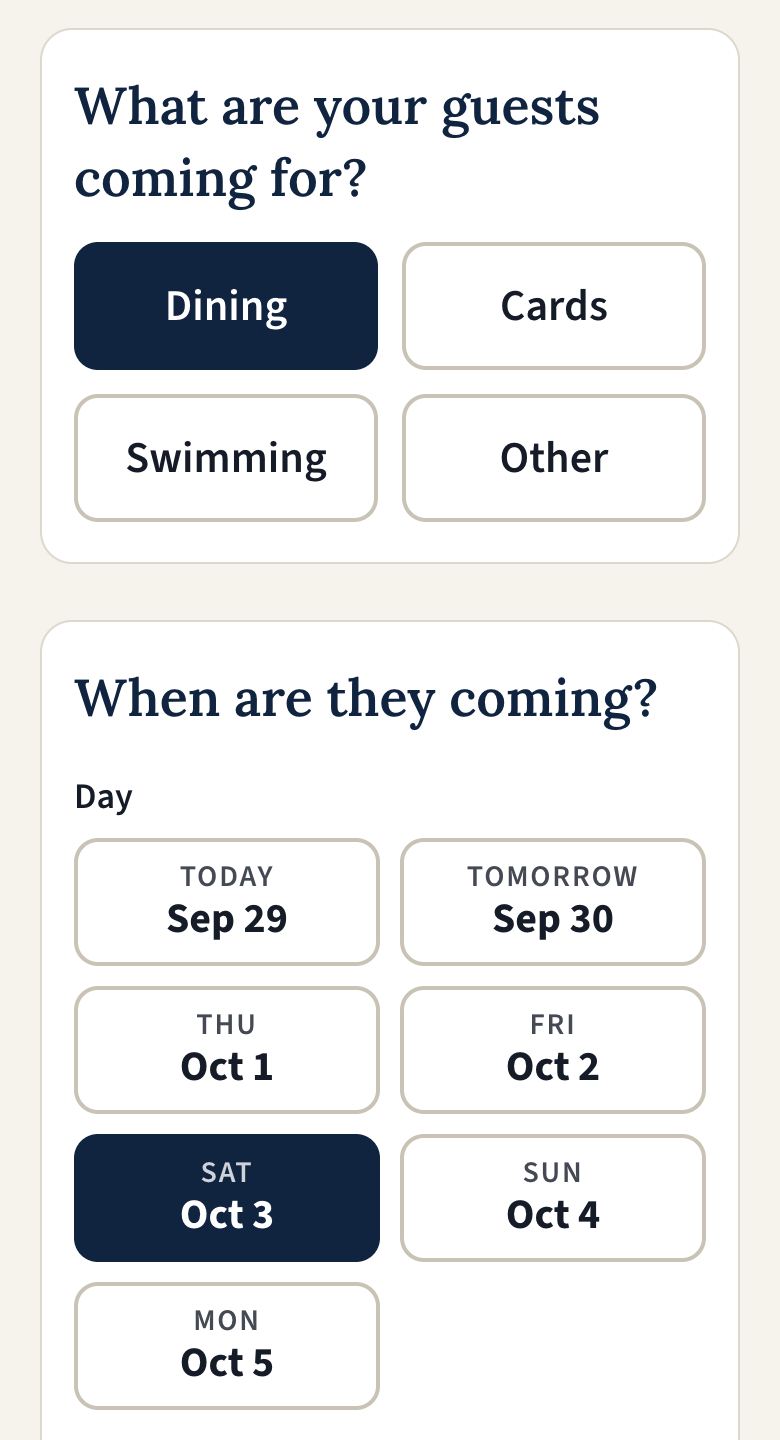
Say what they're coming for, and when
Tap one reason: Dining, Cards, Swimming or Other.
Then tap the day. For a date further ahead, use Or pick another date.
-
3
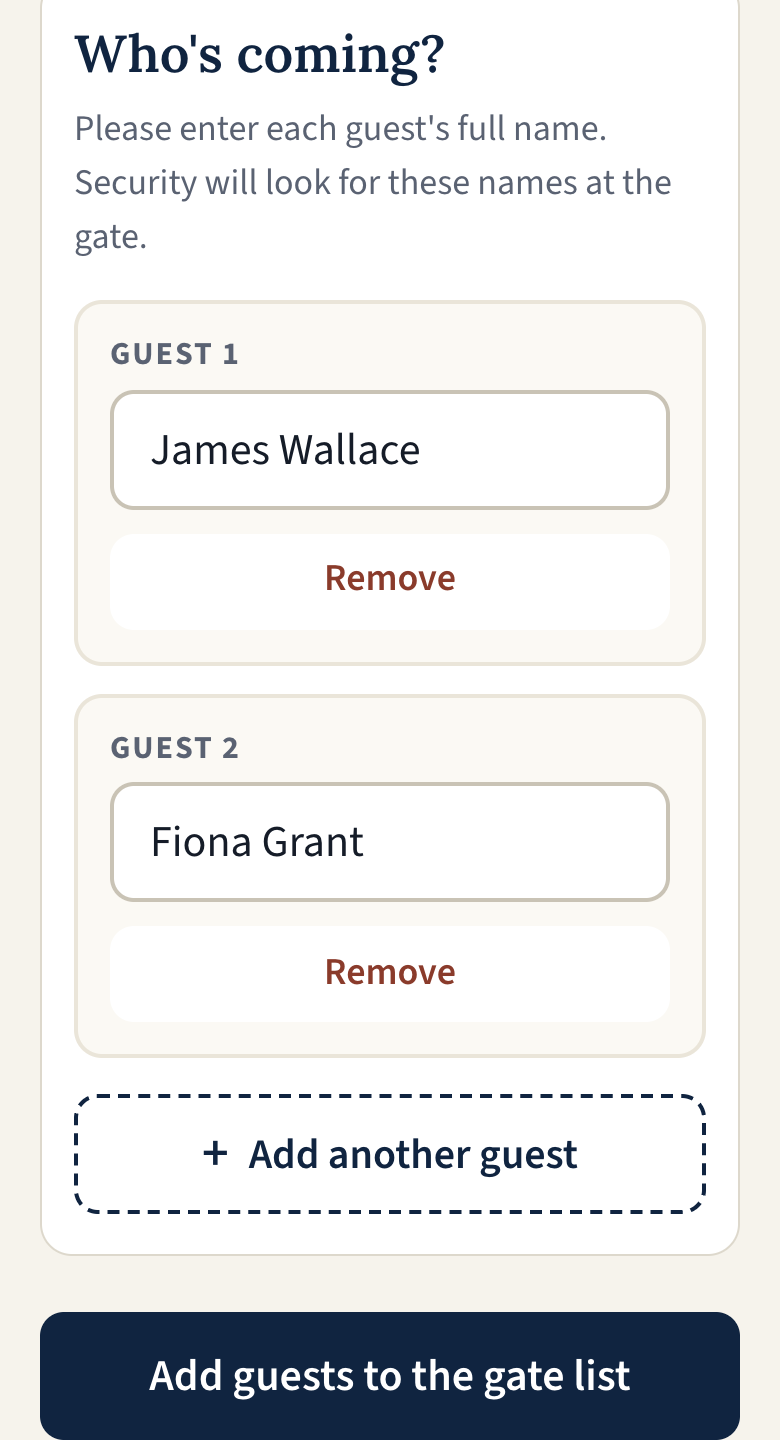
Type each guest's full name
Use their first and last name, just as they'll say it at the gate.
Bringing more than one? Tap + Add another guest for each extra person.
-
4
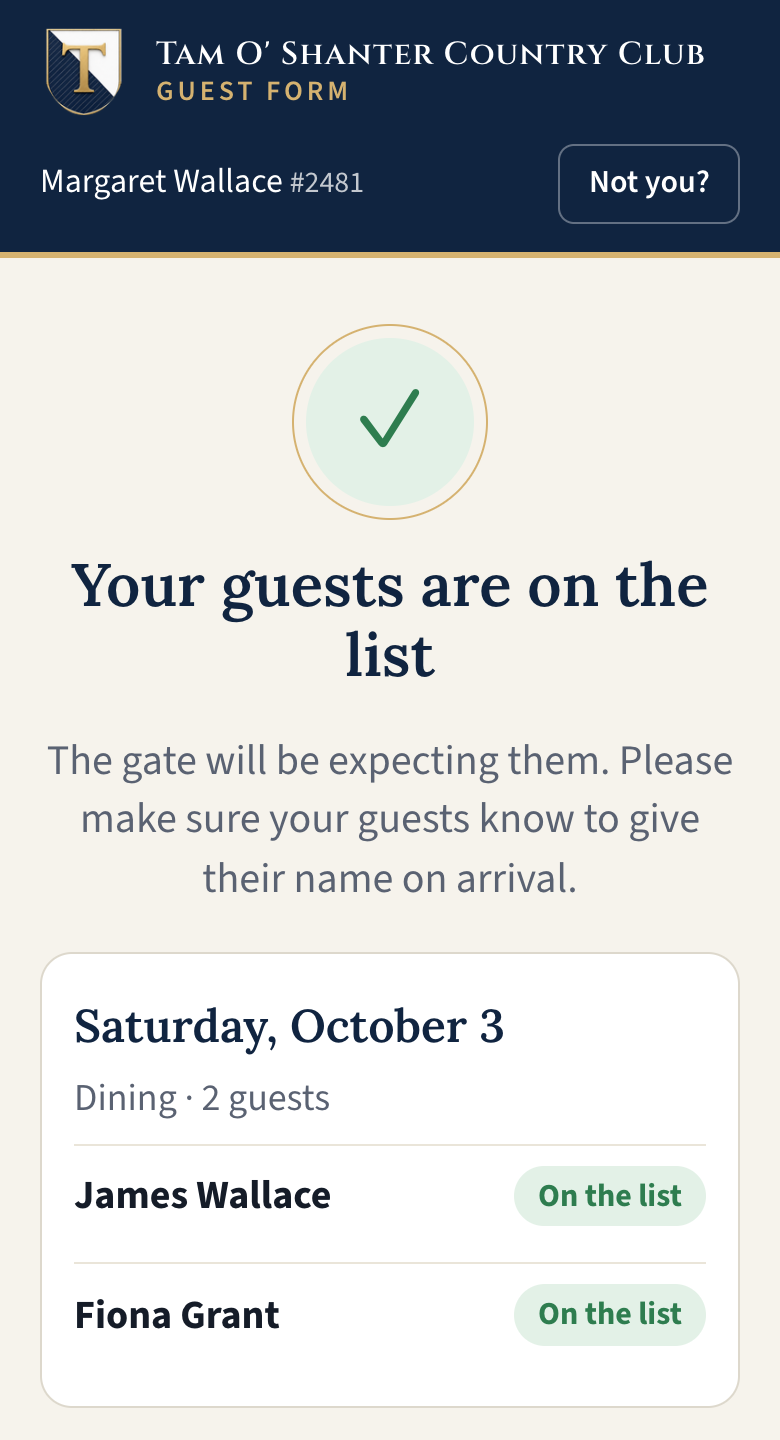
Press the big blue button
Tap Add guests to the gate list. You'll see a green tick and your guests marked On the list.
That's it. They'll show up on the gate list within half a minute. Just remind your guests to give their name when they arrive.
A gold ring then draws itself round the Done button. When it closes, the screen goes back to the start on its own, ready for the next member. Tap Done to go sooner.
Good to know
- Already on the list? If a guest is already down for that day, the form tells you, so nobody is added twice by mistake.
- Evenings: after 8 pm the form picks tomorrow for you, since evening bookings are usually for the next day. Check the day before you press the button.
- Left the page open too long? Your guests are kept. Just press the button again.
- Using someone else's phone? Tap Not you? at the top of the screen. It signs you out and forgets you on that device.
- Made a mistake or plans changed? Let the gate know and they can remove a guest for you.
Checking guests in at the gate
The gate list shows everyone expected today. It keeps itself up to date, so you never need to refresh it.
Watch this part of the video-
1
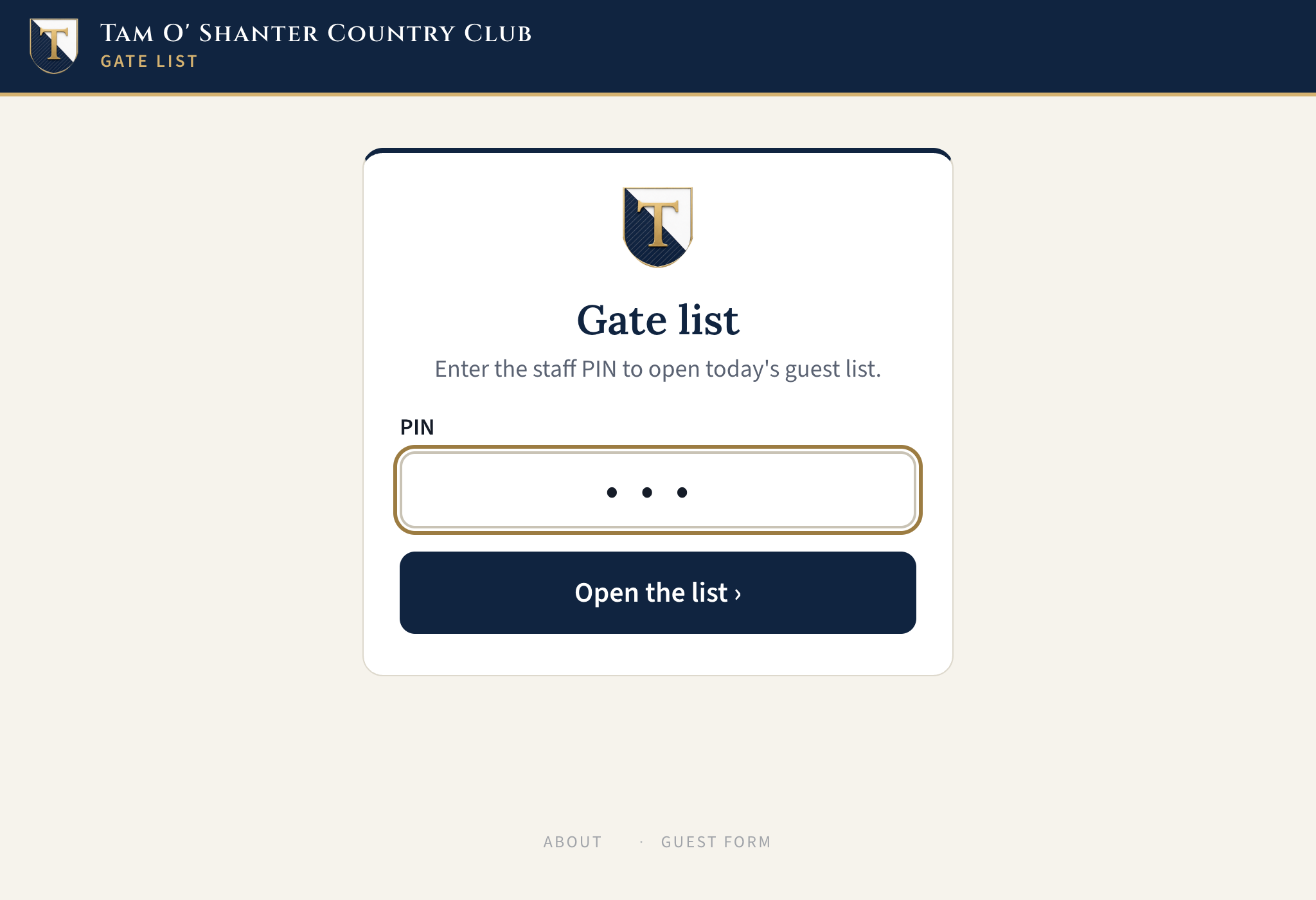
Open the list with the PIN
Tap Gate list at the foot of any page, type the four-digit staff PIN, and tap Open the list.
Leaving the desk? Tap Lock at the top right. The PIN is needed to open it again.
-
2
Find the guest
Each line shows the guest's name, the member who invited them, and what they're coming for.
Busy day? Type a few letters in the search box. It finds guests, members and member numbers.
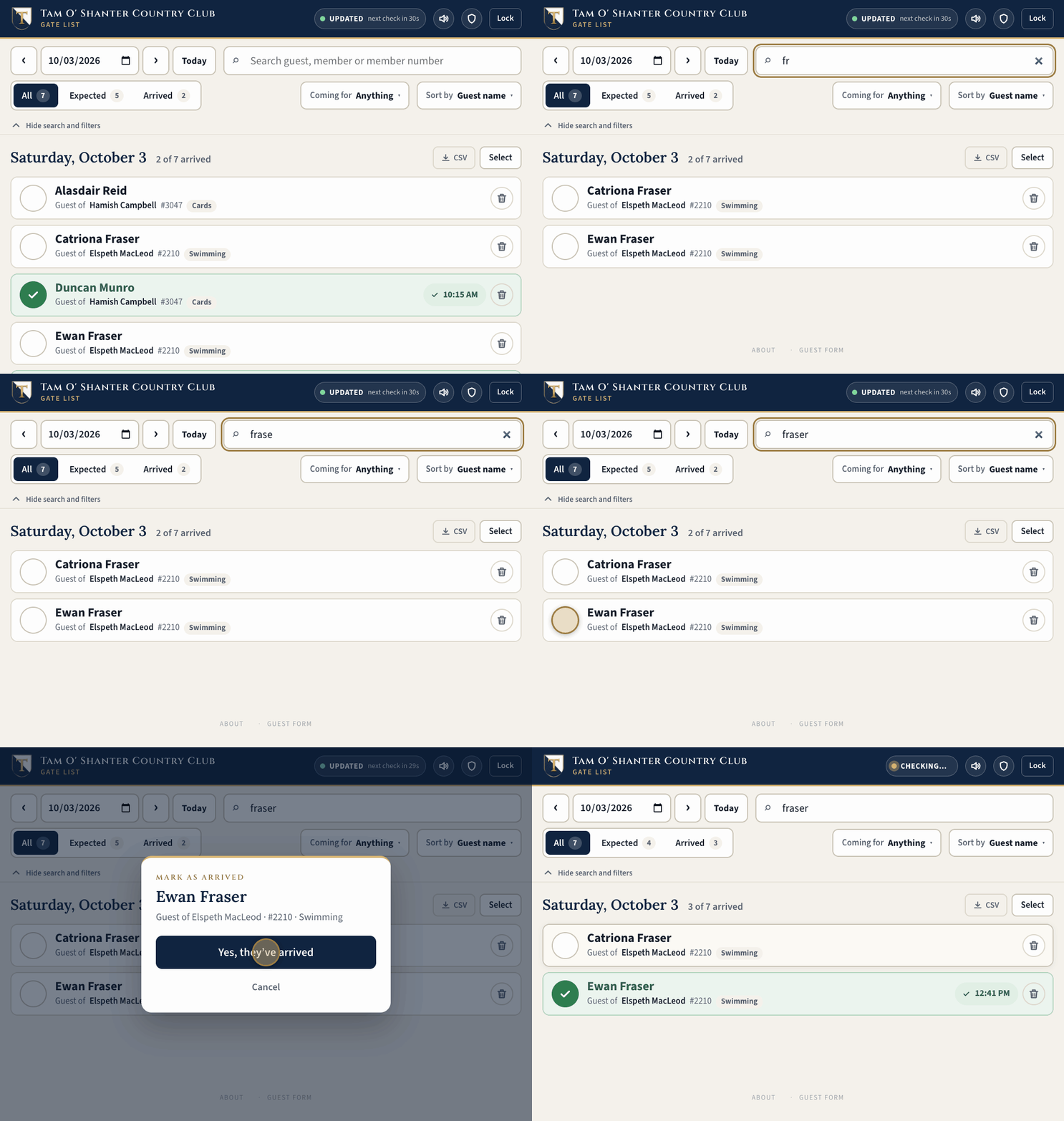
Typing fraser finds both Frasers straight away. - Updated The list is live. New guests appear on their own, with a short chime.
- All · Expected · Arrived Tap to show everyone, only those still to come, or only those already in.
- ‹ Today › Look at another day with the arrows or the date.
-
3
Check them in
Tap the round tick beside their name, or swipe the line to the right.
Tap Yes, they've arrived. The line turns green and shows the time they came in.
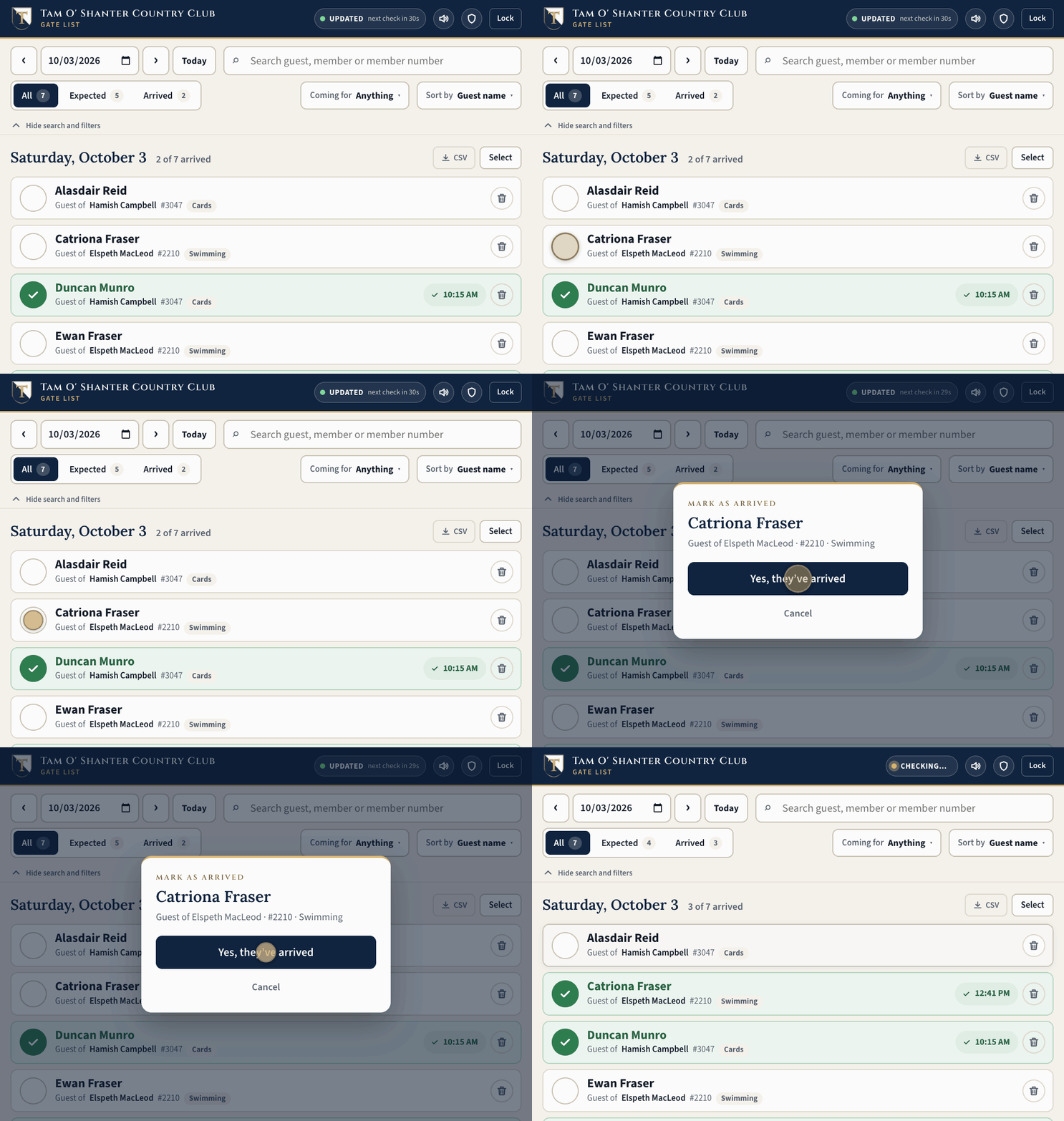
Tap the round tick 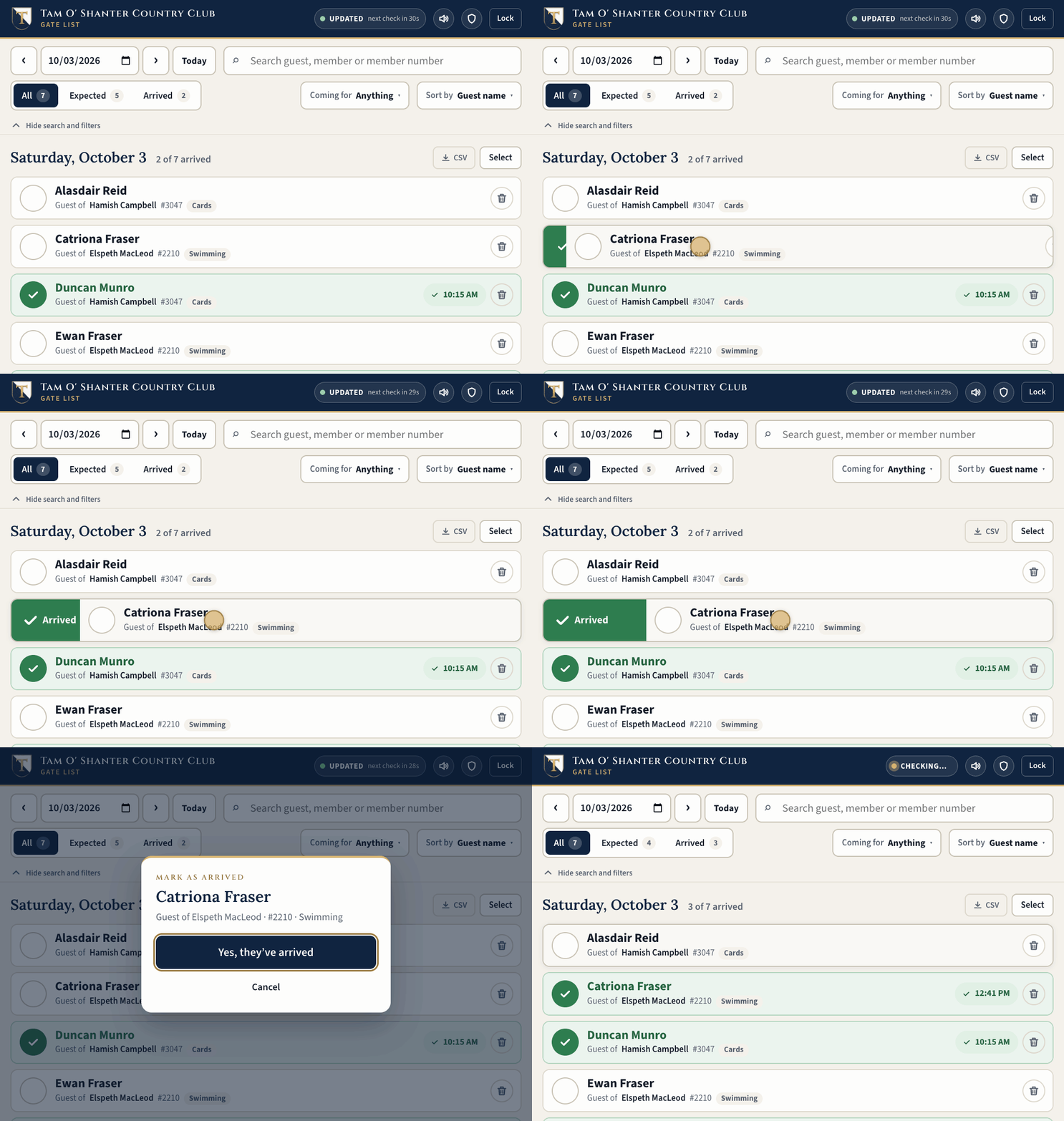
Or swipe the line to the right -
4
Fix a mistake
Checked in the wrong person? Tap their green tick again, or swipe the line to the left, to undo it.
Removed someone by mistake? Tap Restore straight away, or find them later under the Deleted filter.
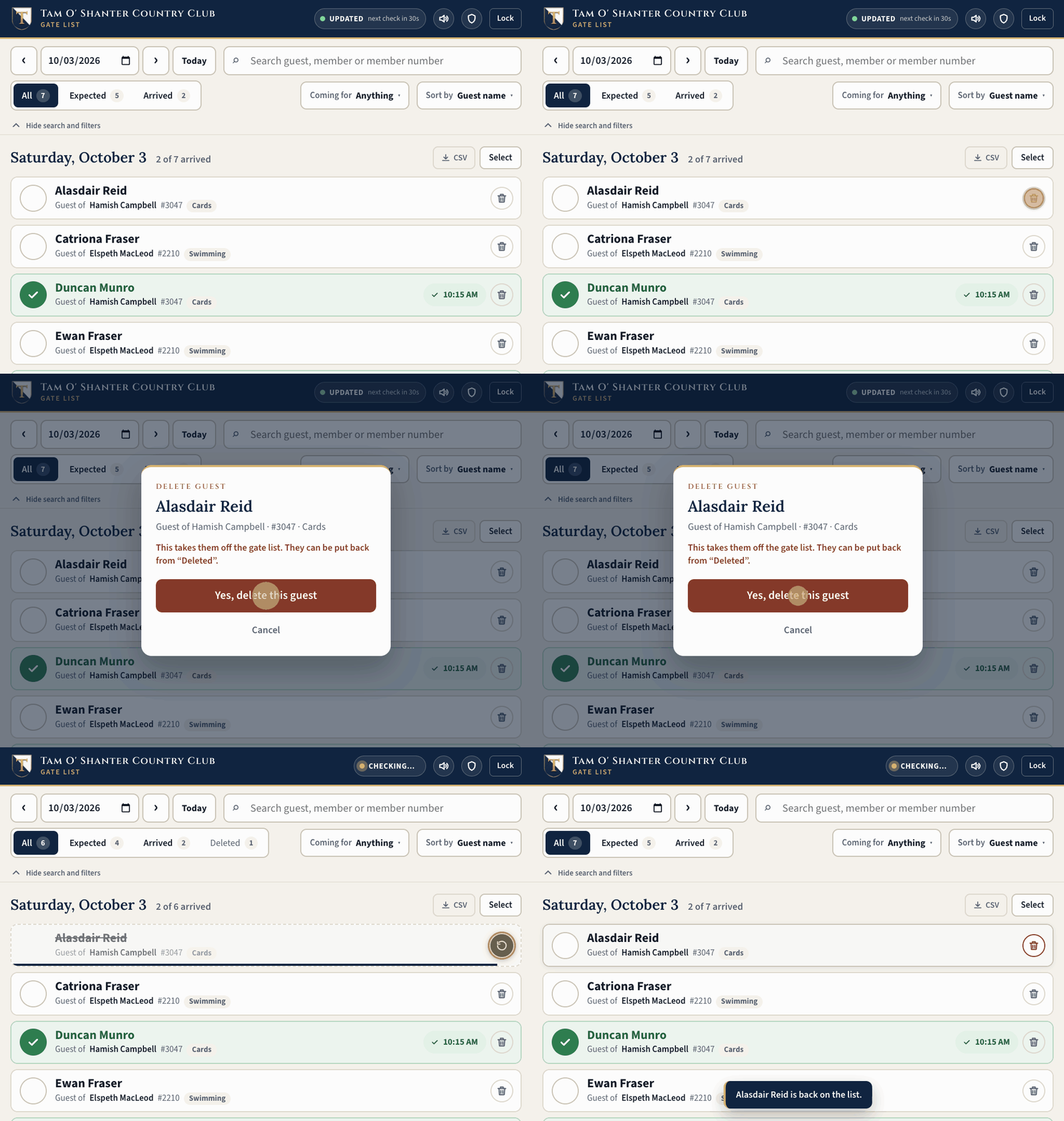
Deleted by mistake? The round Restore button puts them straight back.


Handy extras
- A whole group at once: tap Select, tap each guest, then Mark arrived.
- Chime: the speaker button at the top turns the new-guest chime on or off. Each iPad remembers its setting.
- One-tap mode: the shield button lets you skip the “are you sure?” window. It switches itself off when the list is locked.
- Need a printout? Tap CSV to download the day's list as a spreadsheet.
- Guest not on the list? Check the day and the spelling, then ask the member to add them. They appear on the gate list within half a minute.
Common questions
Do my guests need to do anything?
No. They just give their name at the gate. There's nothing to print, download or show.
Can I add guests for a day next month?
Yes. Tap Or pick another date and choose any day up to three months ahead.
I forgot my member number. What do I do?
The club office can look it up for you.
Does it work on a phone, iPad and computer?
Yes, all three. There's nothing to install. Open the page in your usual web browser.
The gate list says “Offline”. Is something wrong?
The iPad has lost its internet connection. The list keeps showing what it had and catches up by itself as soon as the connection is back. Tap the light to check again.
Still stuck?
Tap About at the foot of the page for a phone number and email address. We're happy to help.